Obtaining the JSON Service Account Key
On this page
To connect to Google BigQuery with a service account, you need a JSON service account key.
To get the key for your project using the Google Cloud Console:
- Open Google Cloud Console.
- Select the required project, then navigate to IAM & Admin > Service Accounts.
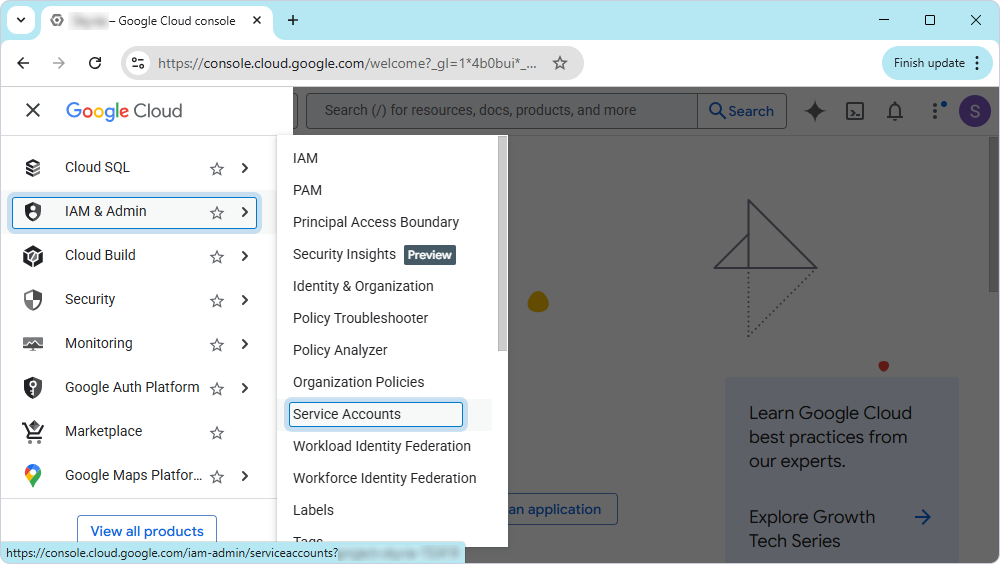
- Continue based on whether you want to create a new service account or use an existing one:
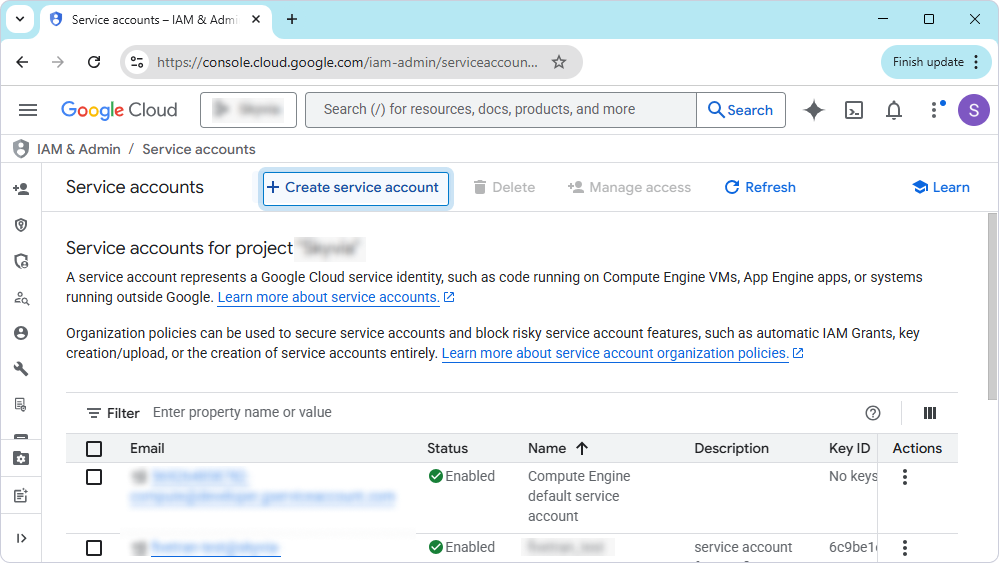
- For a new account:
- Click Create service account.
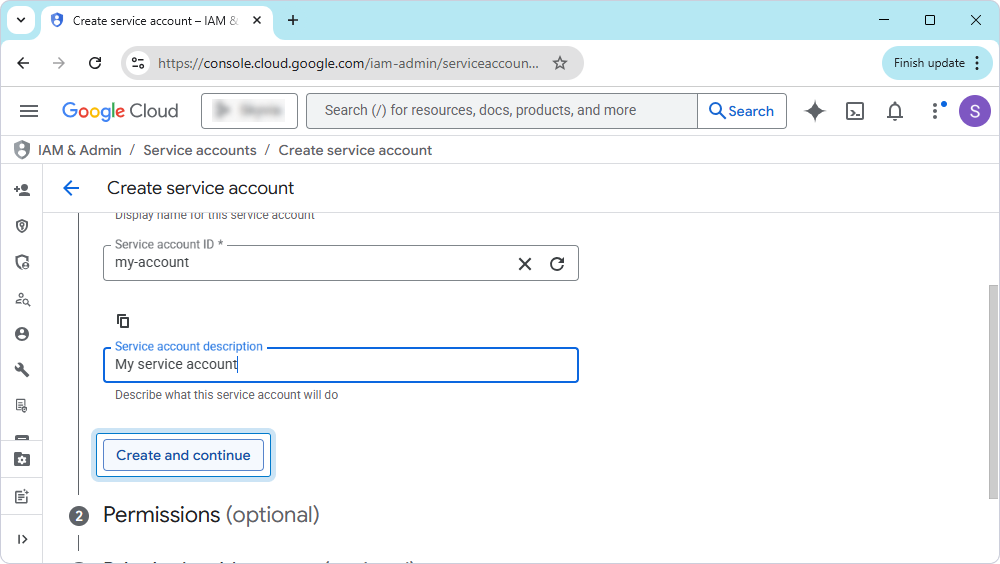
- Name the account, enter the description, then click Create and continue.
- Grant the necessary role, then click Continue.
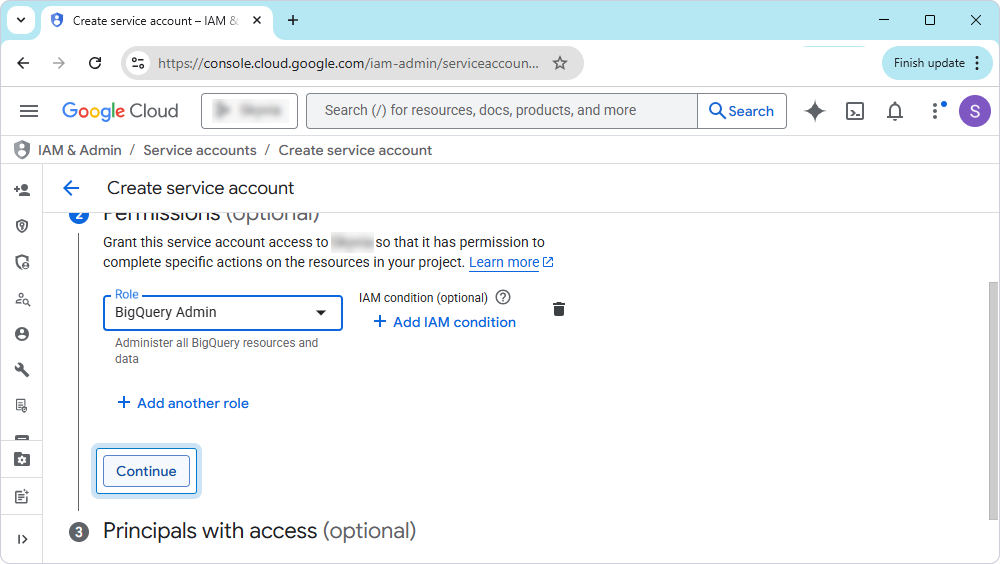
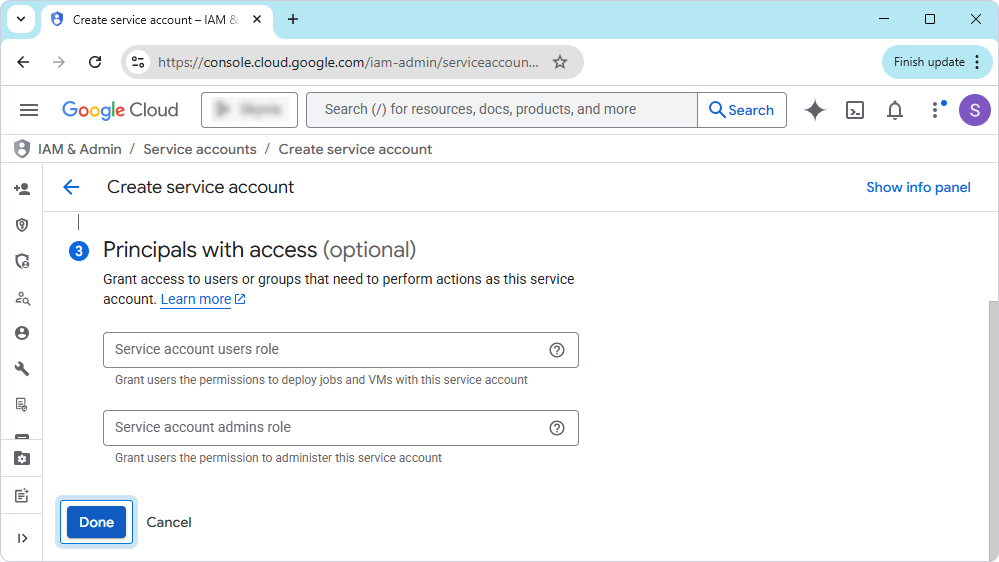
- Optional: Grant access to users or groups.
- Click Done.
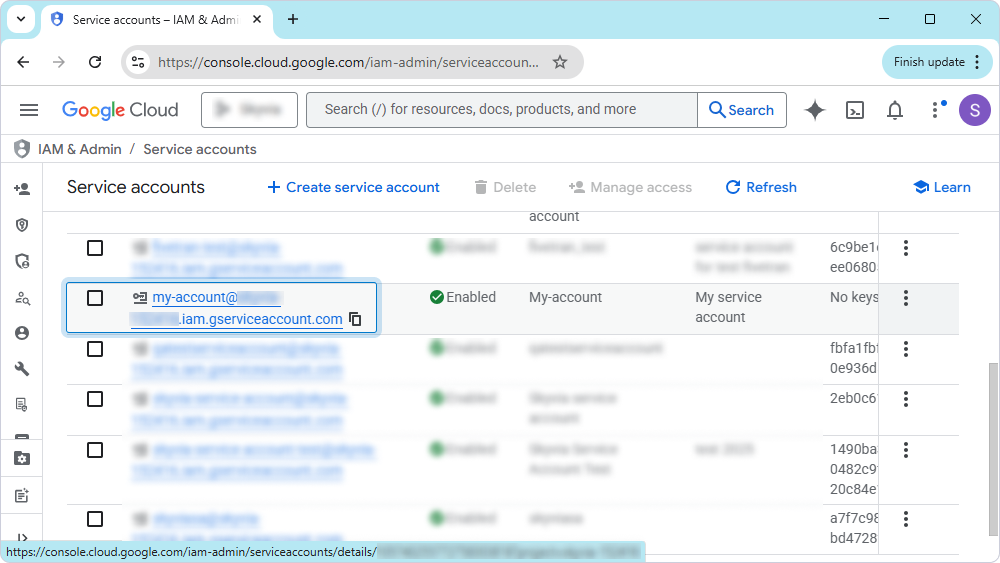
- For an existing account: Click the email address of the account.
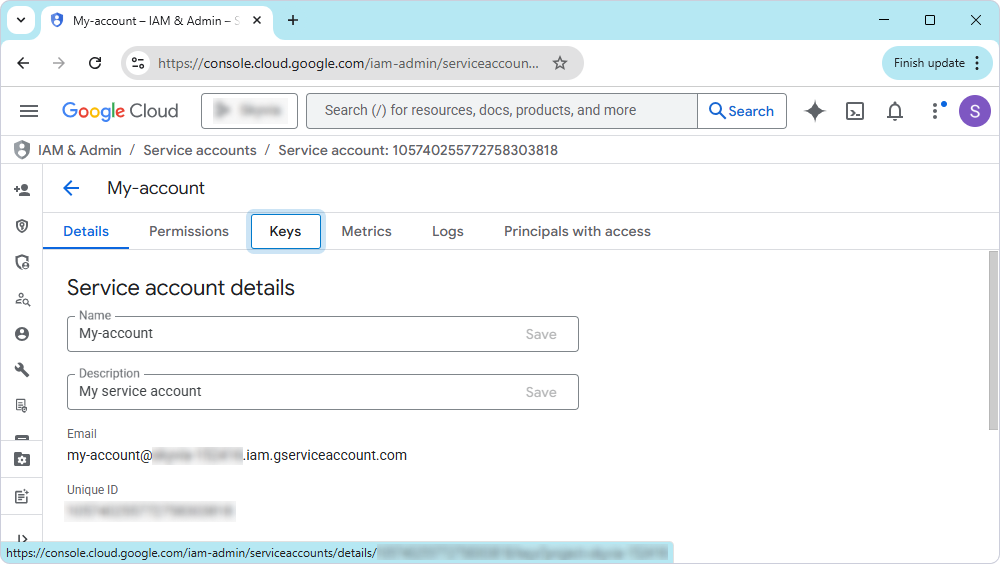
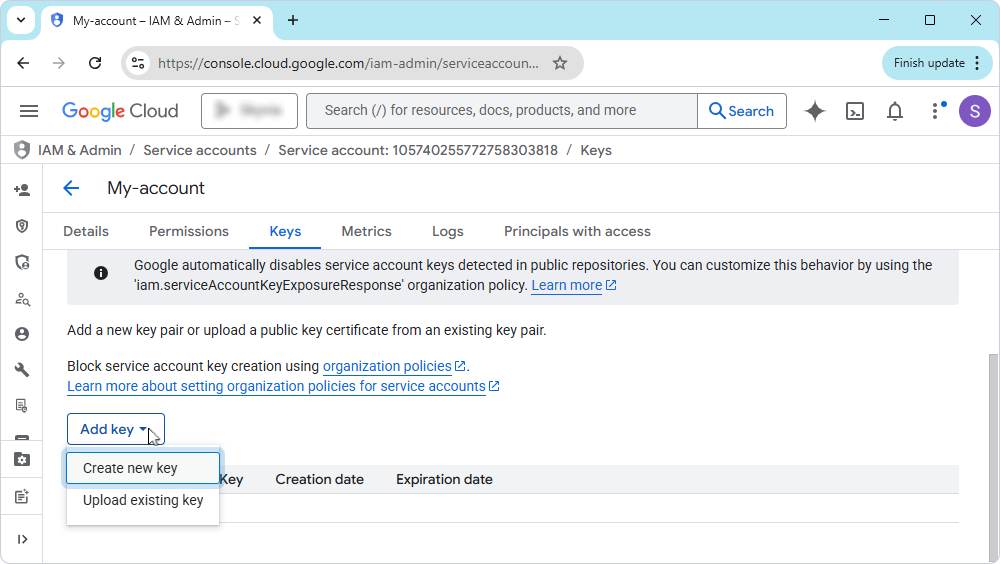
- Click Keys.
- Select Add key > Create new key.
- Select JSON as a key type, then click Create.
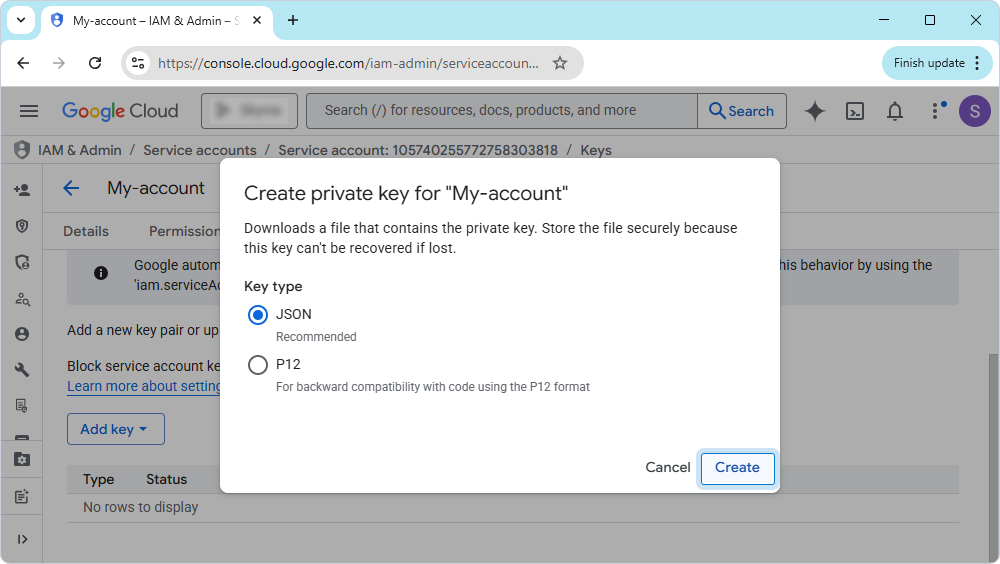
- Save the file on your computer.
The JSON file is downloaded to your computer.
Specify the path to this file or its content in the ServiceAccount Json connection string parameter (Private Key JSON in the connection dialog) and set Authentication Type to ServiceAccount.
The JSON key file contains private credentials. Store it in a secure location and do not share it or commit it to source control.