Working with Command Editor
On this page
Command Editor provides a visual interface for configuring SQL commands and parameters for data access components, including
OracleDataTable, OracleDataAdapter,
OracleCommand, and OracleDataSource.
You can use the editor to define SELECT, INSERT, UPDATE, and DELETE commands, configure their parameters, preview query results,
and generate data modification commands.
This article demonstrates how to configure commands for an OracleDataTable component.
1. Create an OracleDataTable Component
Add an OracleDataTable component to your application, for example, by dragging it from the Toolbox onto a form.
2. Configure the Connection
Configure the Oracle connection for the component.
Some Command Editor operations, such as generating update commands, require an open database connection.
If the connection has not been configured, the editor prompts you to specify the connection properties when you perform one of these operations.
For more information, see Logging Onto The Server.
3. Configure the SELECT Command
Select the command type from the Type list. The following options are available:
- Text – executes the SQL statement specified in the command text.
- StoredProcedure – executes a stored procedure selected from the list of procedures available to the current user (the user specified in the connection).
- TableDirect – retrieves data directly from a table in the current user's schema. Select the All checkbox to choose a table from all available schemas.
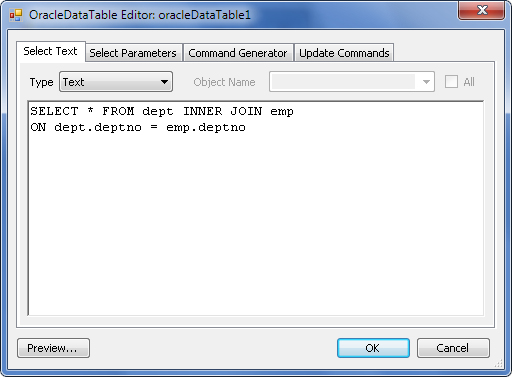
Click Preview to open the Preview Data window and inspect the data returned by the SELECT command.
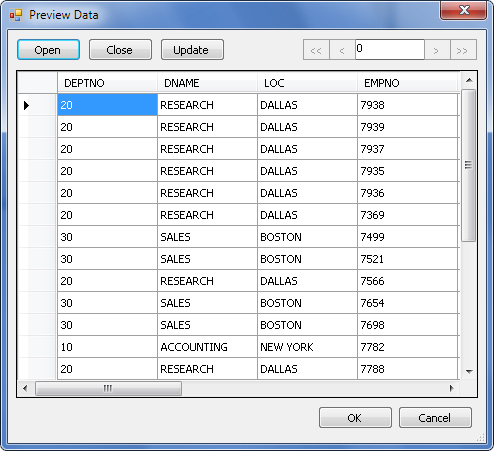
The window provides the following actions:
- Open – executes the command and loads the result set.
- Close – clears the result set.
- Update – saves changes made to the displayed data.
If the query retrieves data from a single table, you can edit the records directly in the Preview Data window
and click Update to save your changes.
Update commands are generated dynamically based on the columns included in the SELECT query.
If the query does not include the table's primary key, data modification may cause data loss or corruption.
4. Configure SELECT Parameters
If the SELECT statement contains parameters, you can configure them on the Select Parameters tab.
For example, the following query uses the @pDeptNo parameter to filter departments:
|
|---|
SELECT * FROM dept WHERE deptno = @pDeptNo |
When you open the Select Parameters tab, the editor prompts you to generate parameters for the data component.
You can also add and configure parameters manually.
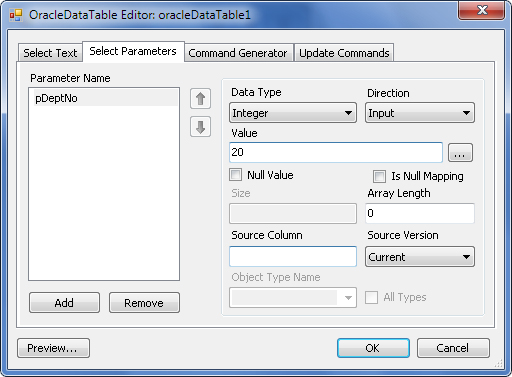
On the Select Parameters tab, configure the following settings:
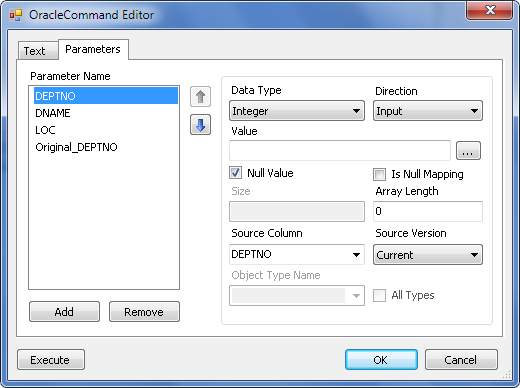
- Parameter properties – configure the parameter's data type, direction, value, and size.
- Parameter Value Editor – specify long string values or values of complex data types. Click the ellipsis (…) to open the editor.
- Null Value – select this option to assign a null value to the parameter.
- Is Null Mapping – sets the parameter's
SourceColumnNullMapping property.
- Object and Array types – if the command receives an array parameter, set the array length in the corresponding field. If the parameter is of a user-defined type (Object, Array, or Table), select the type from the Object Type Name list. The All Types checkbox specifies whether types from other users can be selected.
- Column bindings – in Source Column, specify a data column to bind to the parameter. In Source Version, specify which version of the column value to use: Current, Original, Proposed, or Default.
Column bindings are primarily useful for data modification commands, but the same settings are available for SELECT parameters.
5. Generate Data Modification Commands
The Command Generator tab lets you generate INSERT, UPDATE, and DELETE commands for the data access component.
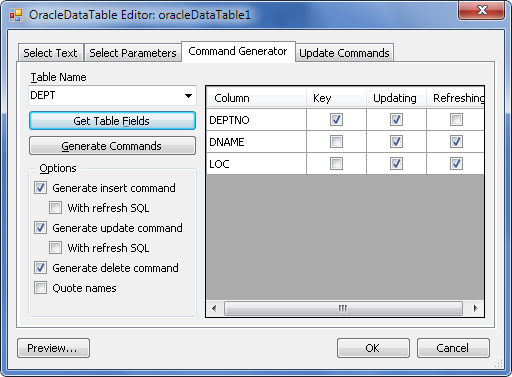
To generate commands:
- Open the Command Generator tab.
- If the query uses multiple tables, select the one for which you want to generate commands.
- Select the checkboxes for the commands you want to generate: INSERT, UPDATE, or DELETE.
- To retrieve updated values after INSERT or UPDATE operations, select the corresponding With refresh SQL checkboxes.
- To enclose database object names in quotation marks, select Quote names.
- Click Get Table Fields to display the fields of the selected table.
- Configure the fields used for identifying, updating, and refreshing records.
- Click Generate Commands.
The field grid provides the following options:
- Key – identifies the fields used to locate records in generated UPDATE and DELETE statements.
- Updating – specifies which fields can be modified by generated INSERT and UPDATE statements.
- Refreshing – identifies the fields whose values are retrieved after INSERT or UPDATE operations when With refresh SQL is enabled.
6. Edit Data Modification Commands
To review or modify generated commands, open the Update Commands tab.
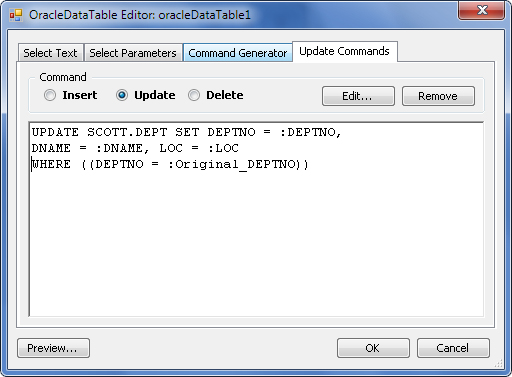
On this tab, you can:
- Modify the SQL statements used for INSERT, UPDATE, and DELETE operations.
- Remove an unnecessary command by clicking Remove.
- Configure a command by selecting it and clicking Edit.
Clicking Edit opens the OracleCommand Editor dialog, which contains two tabs:
- CommandText – view or modify the SQL statement.
- Parameters – configure the parameters used by the command.
See Also
OracleDataTable Class
| OracleDataAdapter Class
| OracleCommand Class
| Using OracleDataSource Component